Security and HTTPS
This page gathers the instance security settings: HTTPS and certificates, bot protection (Anubis), and the most sensitive variables in the .env file.
It is intended for the person who administers the instance (SuperAdmin or a more technical/operational profile).
HTTPS and certificates
Farinha runs behind Caddy, which handles HTTPS automatically:
- With a public address configured (for example,
farinha.yourInstitution.org): Caddy obtains and renews free certificates automatically. - With your own certificates: place the
fullchain.pemandprivkey.pemfiles in thecerts/folder at the project root. They take precedence over the automatic certificates. - Without a public address and without your own certificates (for example,
localhostor an IP): security is disabled, because automatic certificates would require installing a certificate authority on the clients. In that case, it is important to configure a public address or your own certificates as soon as possible.
If, for any reason, you want to disable HTTPS anyway, set in .env:
Farinha behind another reverse proxy
It is common for institutions to place Farinha behind another layer of reverse proxy (for example, an edge proxy, a load balancer, a CDN, or a proxy panel such as Nginx Proxy Manager). The topology looks like this:
In this scenario, the intermediate proxy often fails to pass Caddy the information it needs to complete automatic certificate validation (for example, the domain in the TLS handshake, also called SNI). Without being able to obtain the public certificate, Caddy presents an internal certificate issued by its own local authority:
This certificate is valid for Caddy, but it is not recognized by the proxies in front or by browsers. The result is usually one of these symptoms:
- invalid certificate error on the external proxy/CDN (for example,
526 Invalid SSL Certificateon Cloudflare in strict mode); 502 Bad Gatewayon the intermediate proxy because it cannot complete the secure HTTPS connection with Caddy;- redirect loop: the proxy forwards to port
80, Caddy responds with308 Permanent Redirectto HTTPS, and the browser keeps switching between the two.
The problem is the same with any proxy; the cause is usually one of these two things:
- the proxy does not send the domain in the TLS handshake (SNI), so Caddy does not select the right certificate;
- the proxy tries to validate Caddy's certificate and rejects it, because it is the internal certificate.
Practical solution (example with Nginx Proxy Manager):
-
In the domain's Proxy Host, under Details, point to Farinha via HTTPS on Caddy's port:
-
Scheme:
https - Forward Hostname/IP: IP of the Farinha container (e.g.,
10.0.0.14) - Forward Port:
443
This avoids the loop, because the proxy no longer hits port 80 (which always redirects to HTTPS).
-
On the SSL tab, keep the domain certificate and Force SSL enabled.
-
On the Advanced tab, send the domain in the handshake and accept the upstream's internal certificate:
proxy_ssl_server_name on;: sends the SNI in the handshake, allowing Caddy to select the correct certificate for the domain;proxy_ssl_name farinha.exemplo.org;: defines which domain is sent as SNI;proxy_ssl_verify off;: accepts Caddy's internal certificate on the upstream.
On other proxies, look for the equivalent options: enable SNI/preserve the host name on the upstream and disable upstream certificate verification.
Note: turning verification off keeps the connection encrypted, but it does not validate Caddy's certificate identity. It is acceptable as a temporary solution on an internal/controlled network.
- Only after direct access is working, restore the strictest mode on the external proxy/CDN (for example, Full (strict) on Cloudflare).
Definitive solutions (preferable to verify off):
- Public certificate on Caddy: configure
FARINHA_URLwith the domain and let it complete the ACME challenge, so that Caddy presents a trusted certificate and verification can be re-enabled. - Trusted own certificates: use certificates from an authority recognized by the proxies (the
certs/option). - Disable HTTPS on Farinha with
DISABLE_HTTPS=Trueand point the proxy tohttpon port80of the container. It works, but the segment between the proxy and Farinha is no longer encrypted; assess the risk in your environment. In that case, keep HTTPS only at the edge (proxy/CDN).
Bot protection (Anubis)
Farinha can use Anubis, a firewall that requires visitors to complete a small proof of work to block automated access (bots), reducing load during traffic spikes.
The protection is controlled by two application settings in the internal administration panel (Django Admin):
- Webapp -> Application Settings -> “Anubis habilitado?”
- Webapp -> Application Settings -> “Dificuldade do Desafio Anubis” (Muito leve (1), Leve (3), Padrão (4), and Forte (10))
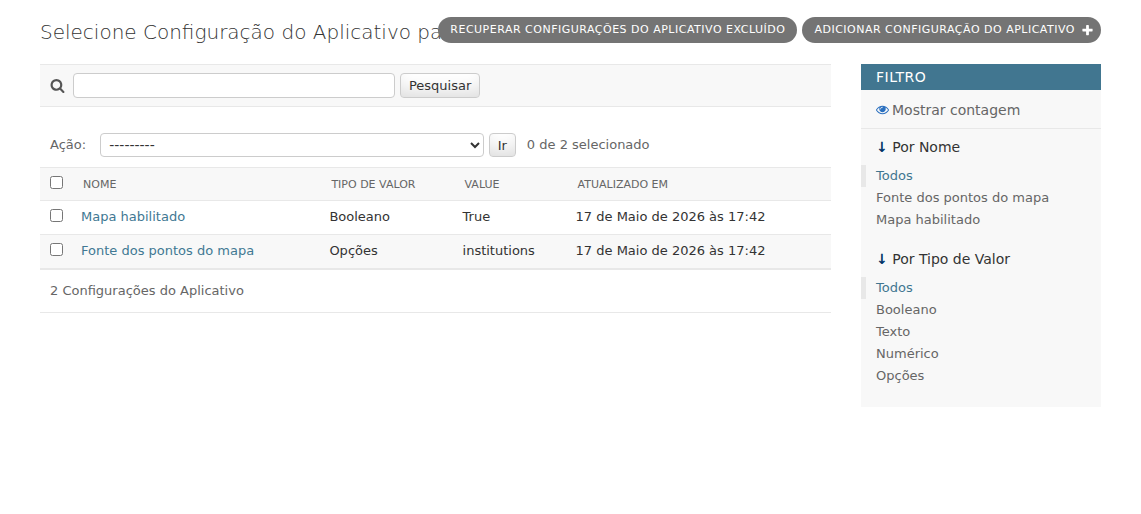
Application settings include the portal map and bot protection (Anubis).
Important points:
- Changes to Anubis (on/off or difficulty) take effect after restarting Farinha. When saving, the panel warns about this.
- The
runscripts (run.sh/run.bat) read these settings from the database and apply them when the instance starts. - The “Padrão (4)” difficulty is a good starting point. High values make the challenge heavier and may annoy users; very low values reduce protection.
- If the challenge does not appear for visitors, check that “Anubis habilitado?” is checked and restart Farinha.
See also: Portal.
Sensitive .env variables
The .env file (created from .env-sample on the first run) holds the instance settings. The most relevant for security:
FARINHA_URL: access domain(s) or IP(s), separated by commas (withouthttps://). With a public domain, HTTPS is enabled automatically.ADMIN_PATH: path of the internal administration panel. Default:admin/. See SuperAdmin user.SECRET_KEY: key that protects sensitive data. It is required: without it, Farinha does not start. It is generated automatically byrun.sh/run.bat; if you create it manually, do not use the$character (Docker Compose would interpret it as an environment variable).SECURE_HSTS_SECONDS: HSTS. Keep it at0(disabled) until you are sure HTTPS works, because HSTS can make the site unreachable if the certificates are not correct. Enable it only if you know what you are doing.SECURE_HSTS_INCLUDE_SUBDOMAINS: includes subdomains in HSTS.SECURE_PROXY_SSL_HEADERandSECURE_PROXY_SSL_HEADER_VALUE: tell Django that the original request is secure when there is a proxy in front (already configured by default for Caddy).SECURE_CONTENT_TYPE_NOSNIFF: prevents browsers from trying to guess the file type.DEBUG: in production, keep itFalse(the default in.env-sample).SQLITE_BUSY_TIMEOUT_MS: how long the database waits when it is busy.
Cautions:
- Never publish the
.envfile or theSECRET_KEY(do not send them by e-mail, chat, or issues). - When changing variables, stop and start the instance again (
./down.sh && ./run.shon Linux;.\down.batand.\run.baton Windows).
Good practices
- Keep restricted permissions on
.env; it contains theSECRET_KEY. - Generate a
SECRET_KEYthat is unique to each instance (therunscripts already do this automatically). Never reuse another installation's key. - Before enabling HSTS (
SECURE_HSTS_SECONDS), confirm that HTTPS works on all domains and subdomains in use. HSTS is hard to revert on the client side. - In production, keep
DEBUG=False. - If you change the panel path with
ADMIN_PATH, share the new address with the team and avoid obvious paths such asadmin/orpanel/. - Keep a backup of the database (
db/) and of your own certificates (certs/), if used. - When using another reverse proxy in front of Farinha, prefer the definitive solution (public or trusted own certificate) instead of keeping upstream certificate verification off for long.
Common problems
- Farinha does not start: check that
SECRET_KEYexists in.envand does not contain$. The error appears in the container logs. - Invalid certificate warning in the browser: it may be Caddy's internal certificate appearing because the domain is not correctly configured in
FARINHA_URL, or because automatic validation could not be completed. Also check the proxy subsection above. - Certificate error (526) or 502 on the proxy/CDN: see the Farinha behind another reverse proxy subsection; it is usually the HTTPS upstream without SNI and with certificate verification enabled.
- Redirect loop: the proxy is pointing to Caddy's port
80, which always redirects to HTTPS. Usehttpson port443or disable HTTPS on Farinha. - The Anubis challenge does not appear: confirm that “Anubis habilitado?” is checked in Application Settings and restart Farinha.
- I changed the Anubis setting and nothing happened: changes only take effect after restarting Farinha (the panel shows a warning when saving).
- The Anubis challenge gets in the way of internal integrations: consider disabling the protection or lowering the difficulty, remembering the required restart.