Users
This page explains how user access works in Farinha, including e-mail activation and manual validation (Curation).
Access profiles (practical view)
- SuperAdmin: accesses the internal administration panel (Django Admin) and manages sensitive settings, users, and permissions. See: SuperAdmin user.
- Place Admin: administers one or more Places (for example: an Institution or a Sector). When you are the Place Admin, action buttons appear on the screens (for example: “Create Fonds”, “Create Collection”, “Manage Administrators”). See: Places.
- Technical staff: performs registration and maintenance tasks for the holdings within the scope allowed by the instance.
- Validator: user with permission to approve registrations when the Institution uses manual validation (Curation).
Who can do it
- SuperAdmin: manages users through the internal panel (Django Admin).
- Validator: manually approves users when the Institution uses manual validation (Curation).
- Place Admin/Technical staff: normally do not approve registrations in the internal panel (this depends on the permissions assigned in the instance).
Access steps: automatic validation and manual validation (Curation)
1) E-mail activation (Automatically validated?)
After registration, the user receives an e-mail with an activation link. When the user clicks this link, “Automatically validated?” becomes checked.
2) Manual validation (Curation) (Manually validated?)
If the Institution is configured for manual validation (Curation), the user needs manual approval in addition to the e-mail activation. In this case, the user can only access the system when “Manually validated?” is also checked.
How to approve a user (manual validation) in the internal panel
- Access the internal administration panel (Django Admin).
- Open “Users”.
- Find the user in the list (you will see columns with icons indicating the user’s states).
- Click the user to open the record.
- Check the “Manually validated?” box.
- Save.
Tip:
- In manual validation (Curation), the user must have both “Automatically validated?” and “Manually validated?” checked to be able to access the system.
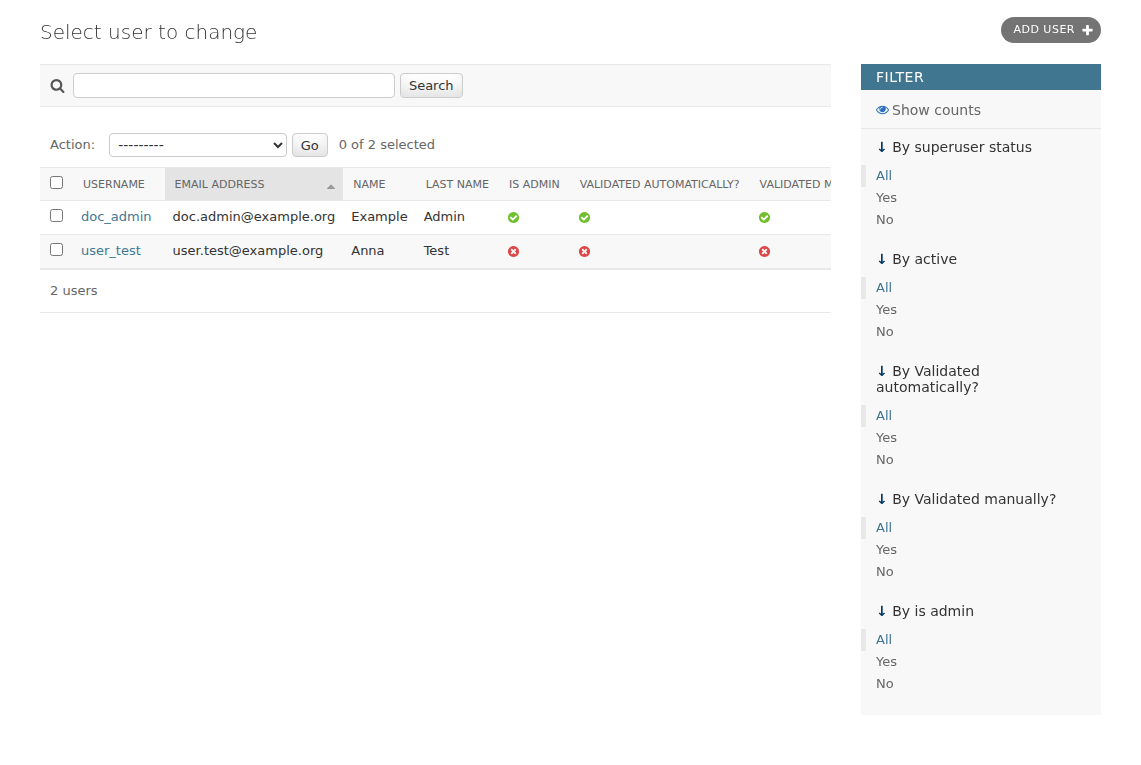
In the user list, check the validation states before opening the record.
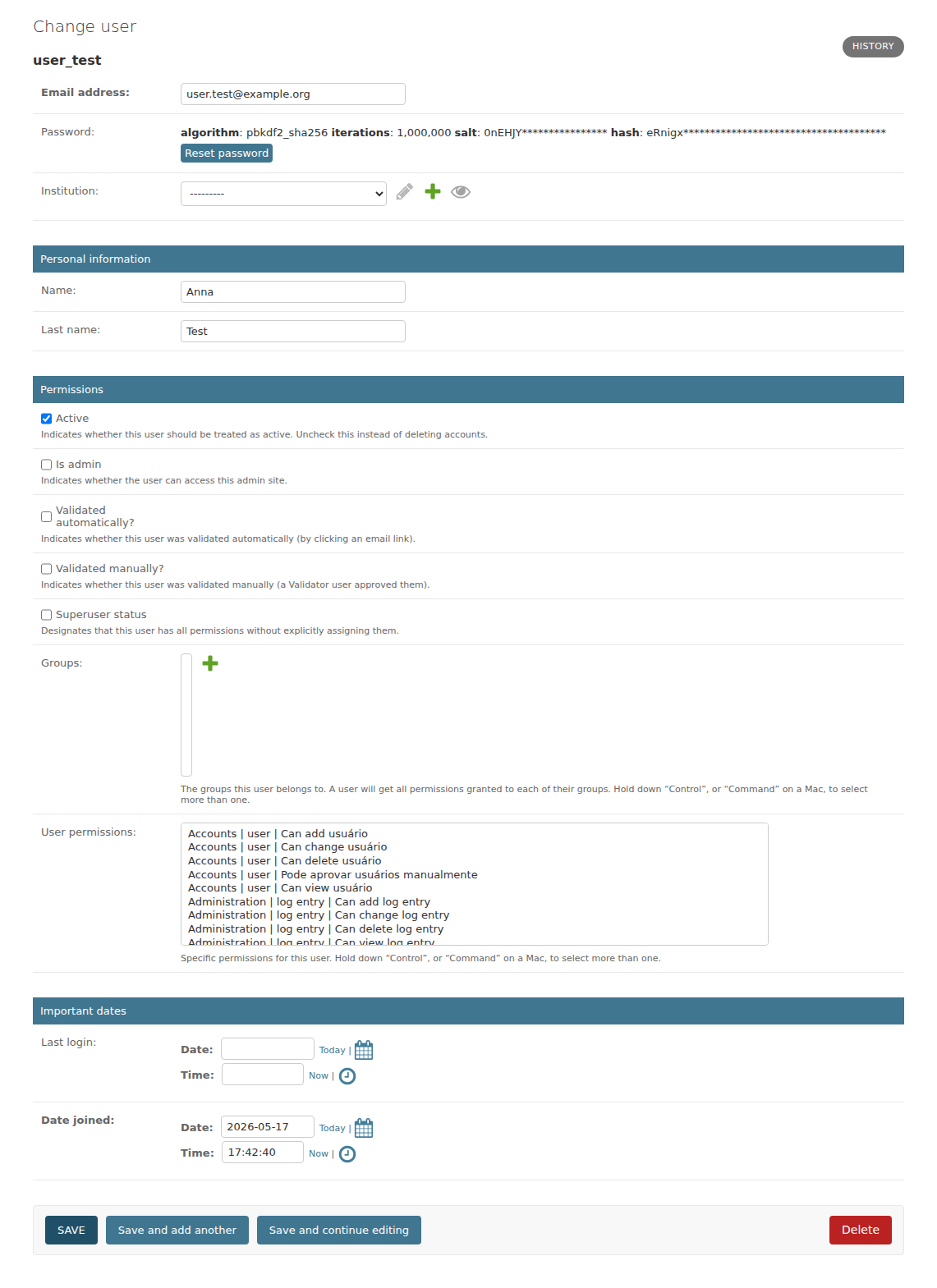
To approve access in institutions with Curation, check manual validation and save the record.
How to interpret states in the user list
- Automatically validated?: indicates whether the user activated the account through the e-mail link.
- Manually validated?: indicates whether the user was approved by a Validator (when the Institution requires manual validation (Curation)).
Besides system access, validation also affects what the user can see: digital objects (media) are only displayed to validated accounts. See: Digital surrogates.
Common problems
- User says “I activated it by e-mail, but I can’t log in”: check whether the Institution uses manual validation (Curation); if it does, “Manually validated?” still needs to be checked.
- User does not receive the e-mail: confirm that the e-mail address in the record is correct and that the instance’s e-mail server is working.
- “Automatically validated?” is empty even after clicking the link: the link may have expired or may have been used incorrectly; follow the instance’s internal procedure for resending/reactivating the account.
- A validated user cannot see the media: check that they are logged in with the correct account and that their institution uses Curation (in that case, both validations are required). See Digital surrogates.
Good practices
- Prefer named accounts (one per person), avoiding shared logins.
- Keep a clear Curation workflow: who approves, within what timeframe, and how the decision is recorded.
- When approving manually, confirm that the user’s e-mail is correct and that they have already activated the account (“Automatically validated?” checked).
- Periodically review pending users in the list, using the “By automatically validated?” and “By manually validated?” filters.
- Deactivate inactive users instead of deleting them, to preserve authorship history in the holdings.