Collections
Collections organize descriptions in a flexible hierarchy (within a Place), with support for Files/Items and custom fields.
Who can do it
- Place Admin: creates, edits, and deletes Collection components within their scope.
- Technical staff: registers and maintains components (including Files and Items) within the allowed scope.
Structure (simple view)
In Farinha, Collection components can use levels such as:
- Collection → Group → Subgroup → Series → Subseries → File → Item
In addition to the level, some components ask you to choose the “Children Type” (that is, what kind of thing can exist below that component).
Create a Collection (from a Place)
- Open the Place page.
- If you are the Place Admin, click “Create Collection”.
- Fill in at least “Reference Code” and “Title”.
- Choose the “Component Level”.
- If the system asks, choose the “Children Type”.
- Save.
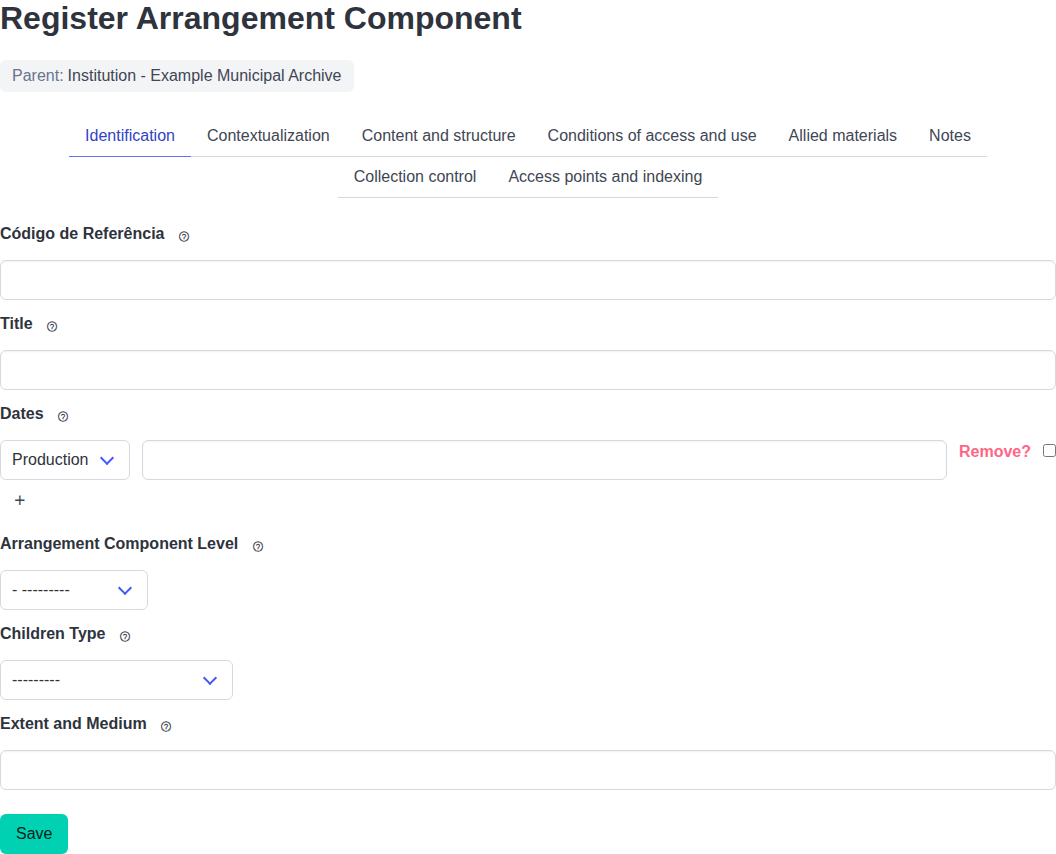
When creating a Collection, define the component level and, when applicable, the allowed children type.
Create children (grow the hierarchy)
On the detail page of a component, buttons may appear such as:
- “Create child Arrangement Component”
- “Create child File or Item” (or “Create child Item”, when you are in a File)
Use the appropriate button for the type of organization you want to build.
Custom fields (when to use them)
Collections allow you to define additional fields to make item registration easier. In practice, this is mainly used when you are in a File and want to standardize the fields that child Items should fill in.
Typical flow:
- Open the form for a component that allows customization.
- Go to the “Custom fields” tab.
- Check the option to customize.
- Give the field set a name.
- (Optional) select standard fields (NOBRADE).
- (Optional) create new fields (name, type, and whether they are required).
- Save.
Note: after a component already has registered children, some structural changes may be blocked to preserve consistency.
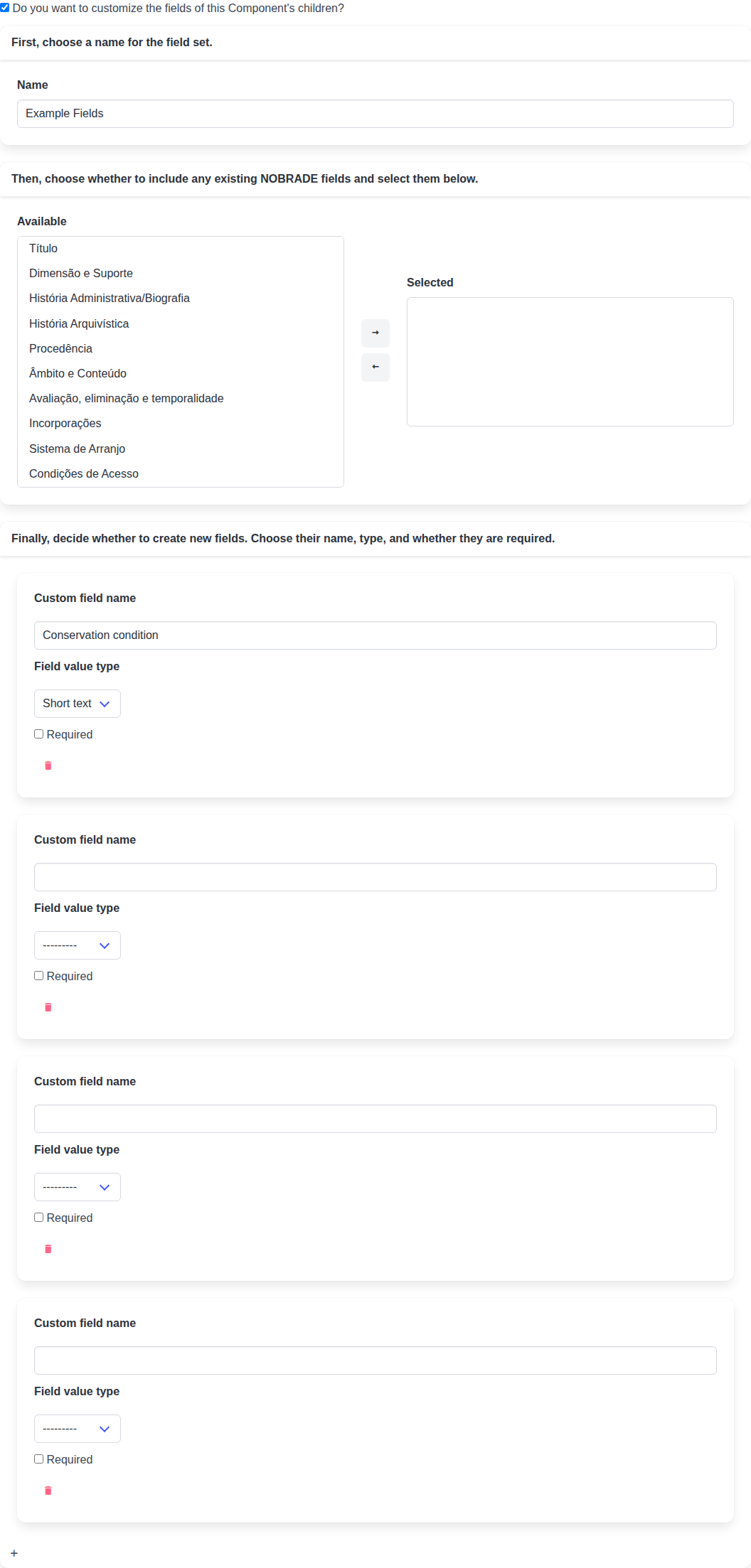
Use the custom fields tab to define fields that standardize the registration of child items.
Digital surrogates (media)
Files and Items can receive media (digital surrogates). In the form, this appears in the “Media” tab. See: Digital surrogates.
Bulk import
The bulk import button appears only in components that accept import. In general, bulk import appears at levels such as:
- Series
- Subseries
See: Bulk data import.
Common problems
- “Create Collection” does not appear: you are probably not the Place Admin.
- The button to create a child does not appear: the current level may not accept that type of child.
- I cannot change “Children Type”: there may already be registered children; in that case, the system blocks the change.