Bulk data import
Bulk import allows you to register several records at once from a spreadsheet (CSV/XLSX/ODS). Optionally, you can also upload a .zip file with media (digital surrogates) to associate with the records.
Who can do it
- Place Admin: submits bulk imports within the allowed scope.
- Technical staff: can run the import when they have permission for the Place.
Where import appears
Bulk import appears as a button on the detail page of the parent component.
In Farinha:
- In Fonds: bulk import appears in Series and Subseries.
- In Collections: bulk import appears in Series and Subseries.
How to import (step by step)
- Open the parent component page (for example, a Series).
- Click “Import … in bulk”.
- Download one of the templates (ODS/CSV/XLSX) and fill it in.
- Upload the completed file.
- (Optional) Also upload a .zip file with the media.
- Click “Submit for processing…”.
Important note:
- Processing happens asynchronously. You will not see the result immediately after submitting.
- You will receive e-mails at the beginning and end of processing, with a summary of what was registered and what failed.
- The import is treated as a single operation: if anything fails, everything created in that import is rolled back, to avoid partial data.
- For security, media
.zipfiles with invalid paths (a “Zip Slip” attempt) are rejected and the operation is canceled.
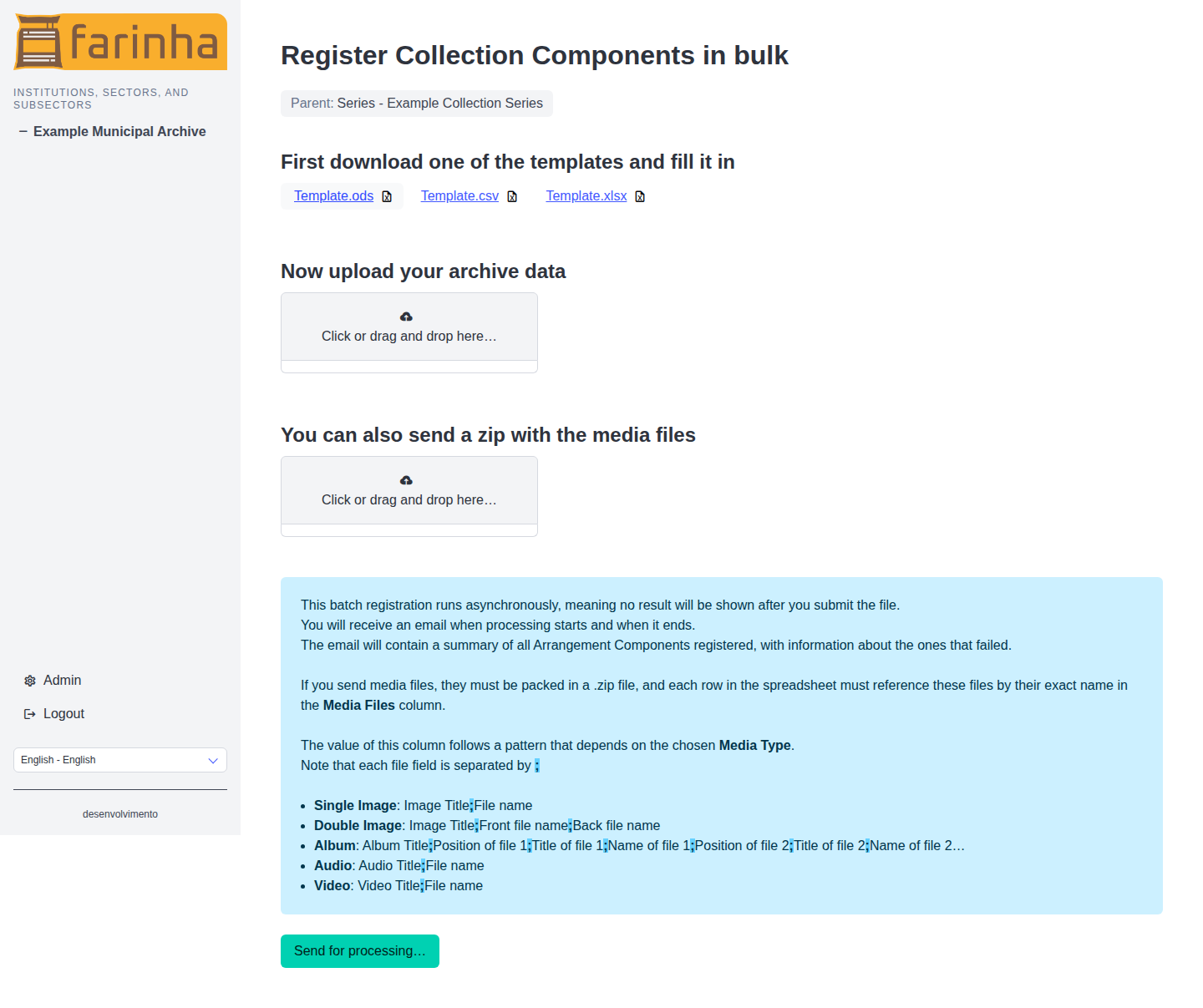
Download a template, upload the completed spreadsheet, and, if needed, include a .zip file with media.
File rules (spreadsheet)
- Accepted formats: .csv, .xlsx, .ods
- The first row of the template is only a visual guide.
- The actual headers are in the second row. Do not rename or remove columns from the template.
- Limit: up to 100,000 records per file.
Media through a .zip file
If you upload media, they must be compressed in a .zip file.
Essential rules:
- Each spreadsheet row references files in the .zip by the exact name in the “Media Files” column.
- The “Media Type” column defines the expected format in “Media Files”.
- Values are separated by semicolons (
;).
Patterns by type:
- Single Image:
Image Title;File name - Double Image:
Image Title;Front file name;Back file name - Album:
Album Title;File position 1;File title 1;File name 1;File position 2;File title 2;File name 2;... - Audio:
Audio Title;File name - Video:
Video Title;File name
Common problems
- “Unsupported file format”: upload only CSV, XLSX, or ODS.
- “The file is empty”: check that there is at least one data row.
- “The file exceeds the limit”: split it into more than one file.
- “Missing headers”: use the template and do not rename columns.
- Media not associated: check whether the file names in the .zip match exactly what is in the “Media Files” column.
- Nothing was registered, even with the right file: the import is a single operation; if any record fails, everything is rolled back. Check the summary e-mail to identify the problematic row and submit it again.
- “Arquivo ZIP contém caminhos inválidos”: the
.zipfile was rejected for security reasons (a Zip Slip attempt). Generate the.zipagain, without folders or paths containing.., and submit it again. - I did not receive the start/end e-mails: check the spam folder and whether the instance’s e-mail server is configured.
- The import seems “stuck”: processing is asynchronous; wait for the completion e-mail before resubmitting the same file.
Good practices
- Always download the template from the screen itself and do not rename or remove columns: the “real” headers are in the second row.
- Test first with a small file (a few rows) to validate the content before importing thousands of records.
- Keep media file names identical to those in the
.zip, including upper/lower case and extension. - Do not resubmit the same file while the previous processing has not finished, to avoid duplicates.
- Keep the
.zipand the spreadsheet used: they help audit and fix resubmissions.